Data cleansing in Dynamics 365 means finding the records that are incomplete, wrong, inconsistent or duplicated, fixing them, and making sure the same problems do not come straight back. People also call it data scrubbing or CRM data cleanup. Whatever the name, the goal is the same: data your sales, service and marketing teams, and increasingly your AI tools, can rely on.
This guide is the hands-on version. It walks through cleansing Dynamics 365 (and older Dynamics CRM) data step by step, shows what you can do with the built-in tools, and where those tools stop. If you are planning a full project, the CRM data cleanup checklist covers scope and ownership, and if you would rather have it done for you, see our Dynamics 365 data cleansing services.
What data cleansing covers in Dynamics 365
Most Dynamics 365 data problems fall into five groups. Cleansing deals with all five, in roughly this order:
- Missing data: accounts without a country, contacts without an email address, opportunities without a close date.
- Invalid data: email addresses that cannot exist, phone numbers in the wrong format, postcodes with a country prefix, dates in the future that should be in the past.
- Inconsistent data: the same thing written five ways, such as “Denmark”, “DK” and “Danmark”, or company names in capitals.
- Duplicate data: the same customer stored more than once, often with slightly different spelling.
- Stale data: records nobody has touched for years, contacts who left the company, accounts with no activity.
Step 1: Measure before you fix
Start with a baseline, otherwise you cannot show that the cleanup worked. For each important table (usually accounts, contacts and leads, then opportunities and cases), write down:
- how many records have each key field filled in (completeness);
- how many values are in a valid format (validity);
- how many records are duplicates (uniqueness);
- how many records have had no activity for, say, 24 months (timeliness).
In Dynamics 365 you can get rough numbers with views and filters: create a view per problem, such as “Contacts where Email does not contain data”, and note the record count. It works, but it is manual, and the numbers are out of date the moment someone saves a record. A data quality rule set with a score does the same job continuously: every record gets a score out of 100, and you can see the result per table.
Step 2: Fill in or remove missing data
Decide, per field, whether it is truly required. A missing country on an account matters for territory routing and reporting; a missing fax number does not. For the fields that matter:
- Use a view with the filter “does not contain data” to list the gaps.
- Fix small numbers directly in the grid, or select several records and use Edit to set the same value on all of them (bulk edit).
- For larger numbers, use Export to Excel, fill in the values, and Import from Excel. Keep the hidden columns in the exported file, so the import updates the existing records instead of creating new ones.
Then stop the gaps from coming back: make the field required on the form, and add a rule that also checks records created by imports and integrations, not only by people using the form.
Step 3: Standardise formats
Standardising means writing the same thing the same way. Typical targets in Dynamics 365:
- phone numbers in international format, for example +45 31 31 38 38;
- country names from one list, ideally a choice column or lookup instead of free text;
- postcodes without a country prefix;
- company names in normal case, without trailing spaces;
- website addresses that start with https://.
Built-in options are bulk edit, Excel round trips and Power Automate flows that rewrite a value when a record is created or updated. Flows work well for one or two fields but become hard to maintain across dozens. Whatever you use, define the format first, then apply it everywhere, including to data that arrives through imports.
Step 4: Validate data at the point of entry
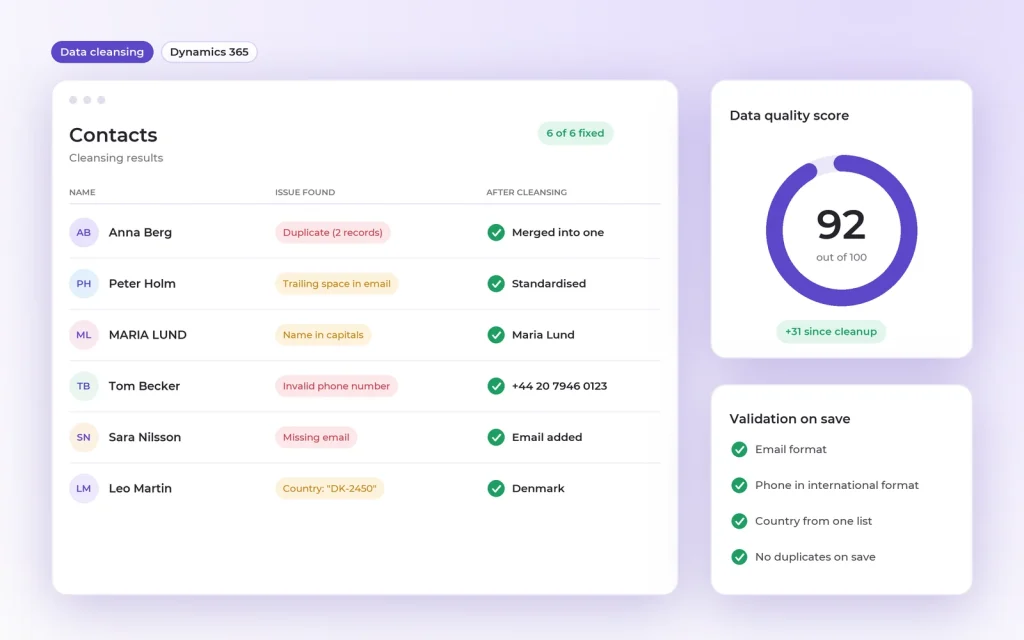
Cleansing existing records is only half the job. If new records can still be saved with an invalid email address, the cleanup slowly undoes itself. Validation rules should check:
- Format: email, phone, URL and postcode.
- Allowed values: the value must be one of a list, or must not be one of a list.
- Ranges and dates: a number within a range, a birthday in the past, an end date after the start date.
- Relationships between fields: at least one of email or phone filled in, mobile and business phone different.
- Activity: an open opportunity with no activity in the last 30 days.
Dynamics 365 business rules can make fields required or show messages on a form, but they do not score records or show you how many records in the whole table fail a check. The Data Quality App’s data quality rules cover 22 rule types, can warn the user or block the save, also apply to imports and integrations, and feed a data quality score for every record.
Step 5: Find and merge duplicates
Duplicates are usually the biggest single problem, and the one with the most visible cost: split activity history, two colleagues calling the same customer, reports that count customers twice.
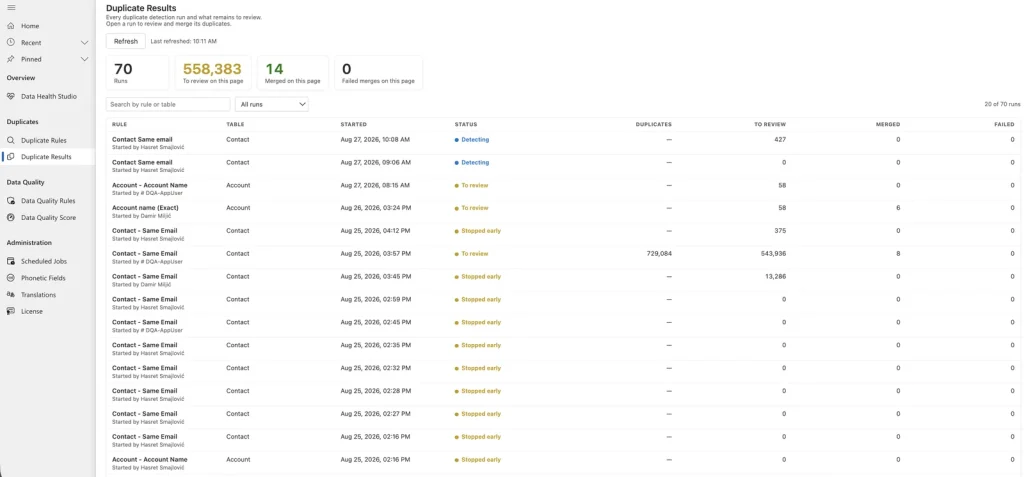
- Find them. Built-in duplicate detection jobs (Settings, Data Management, Duplicate Detection Jobs) list exact matches. They miss “Jon Smith” and “John Smith”, or “Contoso” and “Contoso Ltd”. For those you need typo-tolerant and fuzzy matching, plus normalised keys for phone numbers, email addresses and company names.
- Review them. Look at the pairs before merging, and record the ones that are not duplicates, so they are not flagged again.
- Merge them. The native merge handles two records at a time for accounts, contacts, leads and cases. For hundreds or thousands of duplicates, or for custom tables, you need bulk merge with rules for which record and which field values win. Our guide on how to merge records in Dynamics 365 covers both.
For the full picture of detection itself, see Dynamics 365 duplicate detection: the complete guide.
Step 6: Archive or remove stale records
Old records are not always wrong, but they add noise. Agree a policy with the business first, for example: contacts with no activity in three years and no open opportunities are deactivated. Then:
- deactivate rather than delete where history matters for reporting;
- use bulk record deletion jobs (Settings, Data Management, Bulk Record Deletion) only for data you are sure you do not need, and test them in a sandbox first;
- keep personal data in line with your GDPR retention rules.
Step 7: Keep the data clean
A one-off cleanse decays within months: new imports, integrations and busy users bring the old problems back. To keep the result:
- keep the validation rules from step 4 switched on;
- keep duplicate detection running on save, so new duplicates are caught before they exist;
- schedule a regular duplicate scan, for example nightly, for data that arrives in bulk;
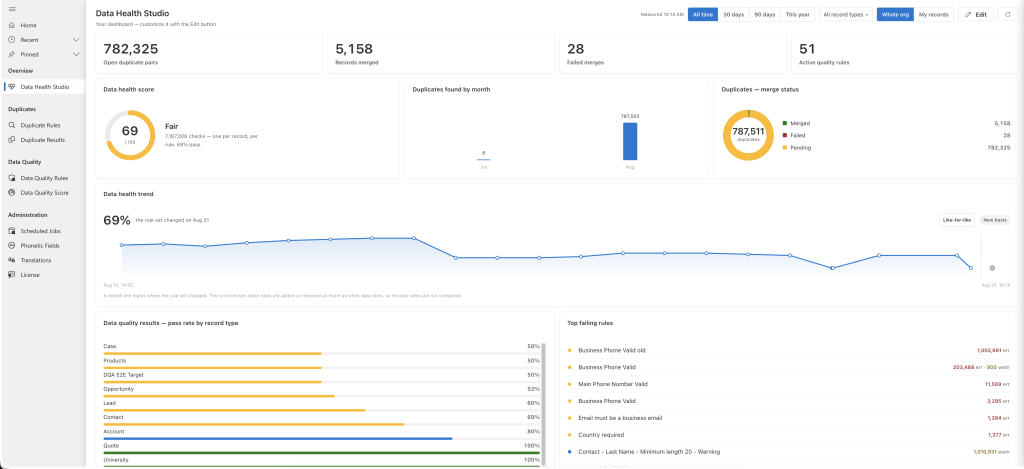
- follow one data quality score over time, per table, so you notice when it starts to slip.
Built-in tools or an app: where the line is
For a small database and a one-off cleanup, the built-in tools are enough: views, bulk edit, Excel round trips, duplicate detection jobs and the native merge. They become slow and error-prone when:
- there are more than a few hundred duplicates, or duplicates that are not exact matches;
- you need to merge custom tables, or more than two records at a time;
- data arrives from imports and integrations that bypass form logic;
- you need to prove the improvement with numbers, and keep proving it.
The Microsoft-certified Data Quality App runs inside your own Dynamics 365 environment and covers each step above: data quality rules and scores, typo-tolerant and phonetic duplicate detection, bulk and automatic merge, and Data Health Studio to follow data health over time. Customer data never leaves your tenant.
Sent. The checklist is on its way to your inbox.
Frequently asked questions
What is the difference between data cleansing and data scrubbing?
In practice, none. Both mean finding and fixing incomplete, invalid, inconsistent and duplicate records. Some teams use “scrubbing” for the automated part, such as standardising formats, and “cleansing” for the whole process, including deduplication and archiving.
How long does a Dynamics 365 data cleansing project take?
It depends on the size and state of the data. A focused cleanup of accounts and contacts can take a few weeks; a full cleanup across many tables, with duplicate merging and new validation rules, takes longer. Measuring a baseline first (step 1) gives you a realistic estimate.
Can I undo a cleanup in Dynamics 365?
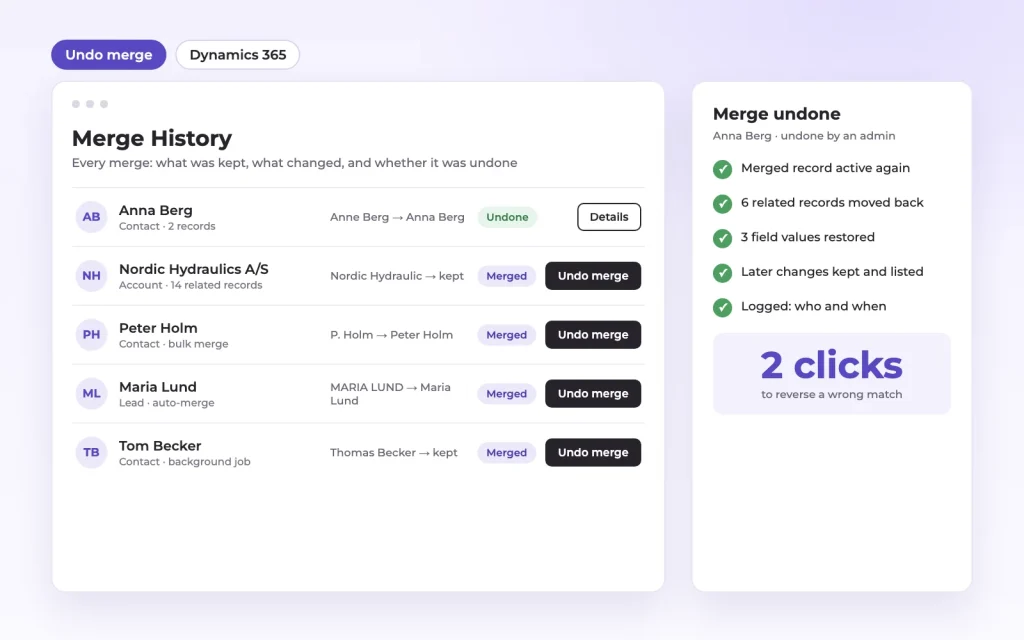
Field updates can be reversed if you keep the exported data. A built-in merge cannot be fully undone: the losing record can be reactivated, but its activities stay on the master record. The Data Quality App records every merge in Merge History, so an admin can undo a merge, including bulk merges. Test bulk changes in a sandbox, and keep an export before you start.
Should I cleanse data before migrating to Dynamics 365 Online?
Yes. Cleaning before a migration means you move less data, and only data you trust. See our practical guide to cleaning data before a CRM migration.
How often should Dynamics 365 data be cleansed?
Continuously, if possible: validation and duplicate detection on save prevent most new problems, and a scheduled scan catches what arrives in bulk. Without that, plan a review at least every quarter.
Start with your own numbers
The quickest way to see how much cleansing your data needs is to measure it. Start the free 15-day trial in your own environment, or book a demo and we will walk through it on your data.
Improve your data quality in Dynamics 365
The Data Quality App keeps records complete and correct with data quality rules at the point of entry, finds duplicates with fuzzy and phonetic matching, resolves them with bulk merge and tracks your data quality score over 30 and 90 days in Data Health Studio. Native in your own environment, free for 15 days.